
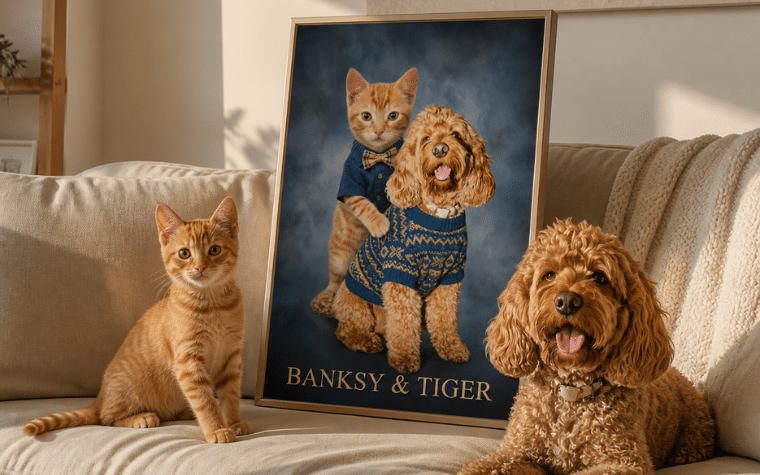
How to Turn a Photo Into a Painting (and Actually Get It Printed) | iCanvas
We bet you’ve heard of people turn a photo in a painting before. At some point in the last year, you’ve probably seen a photo of a friend, or maybe your own face, reimagined as a Renaissance portrait or a Baroque oil painting. AI art has made it easy to see yourself inside a painting, and it’s genuinely fun for the few minutes you’re playing with it.
The part most people never get to is what happens after. The image sits in your camera roll, gets posted once, and is never thought about again. That’s the gap iCanvas built to close: instead of ending with a file on your phone, it ends with a piece you can actually hang.
How to Turn Your Photo into an AI Painting with iCanvas
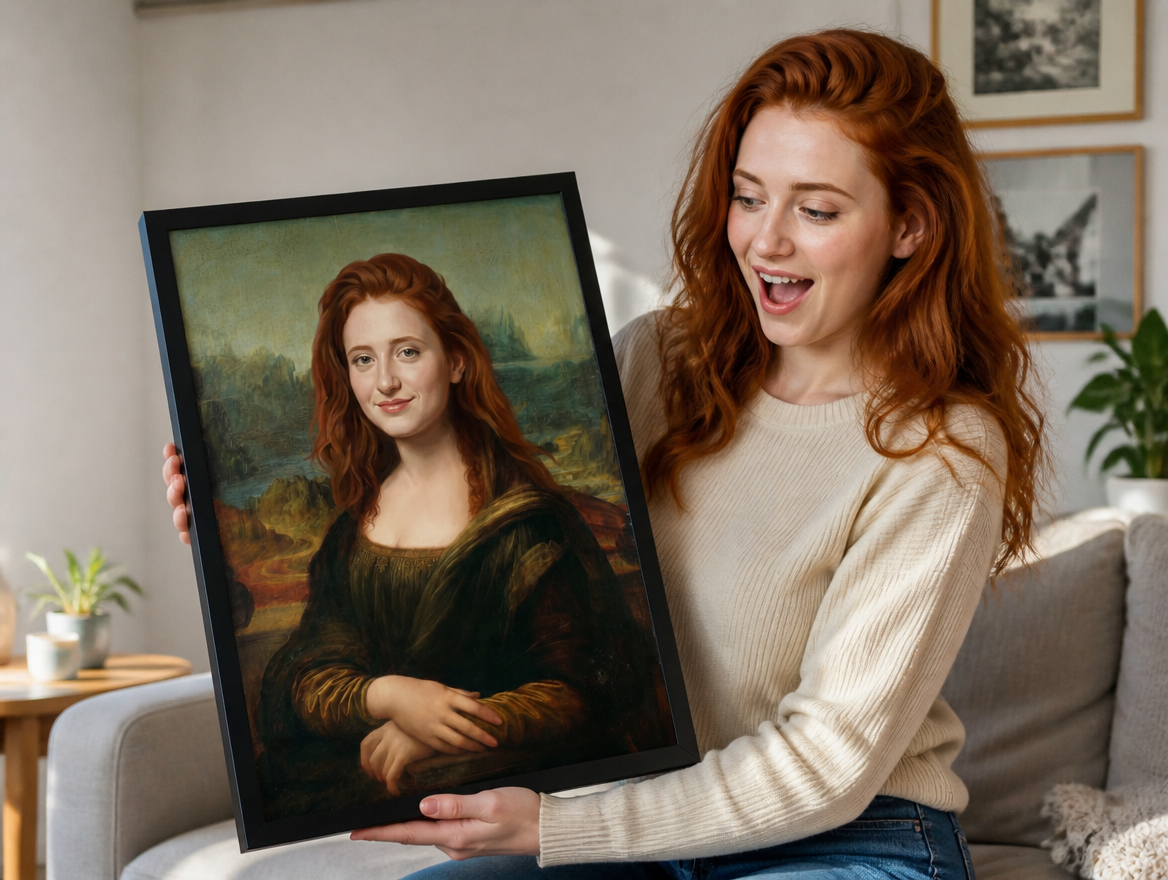
Step 1: Pick a Template
Choose from a growing collection of famous paintings, including options built specifically for people and others designed around pets, so there’s a natural fit whether you’re uploading a solo portrait, a photo of your dog, or a shot of your whole family.
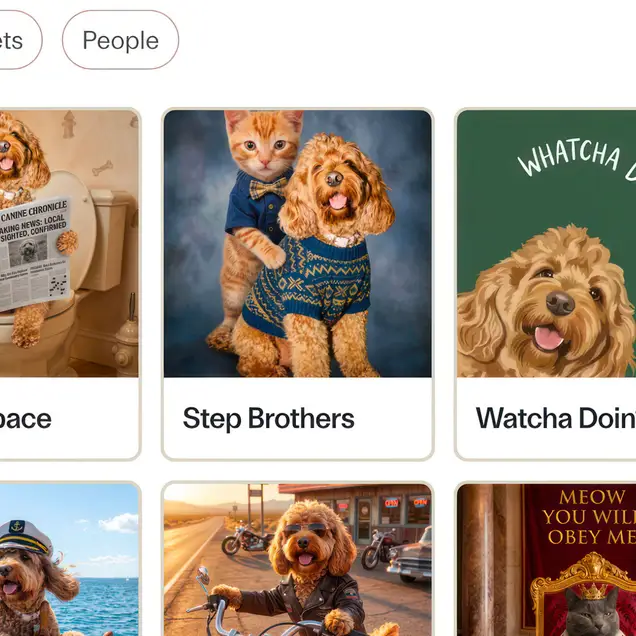
Step 2: Upload Your Photo
You can upload as many photos as you’d like while you find the one that works best. There’s no cap on uploads, only on how many times you generate a result, so feel free to experiment with a few options before settling on your favorite.
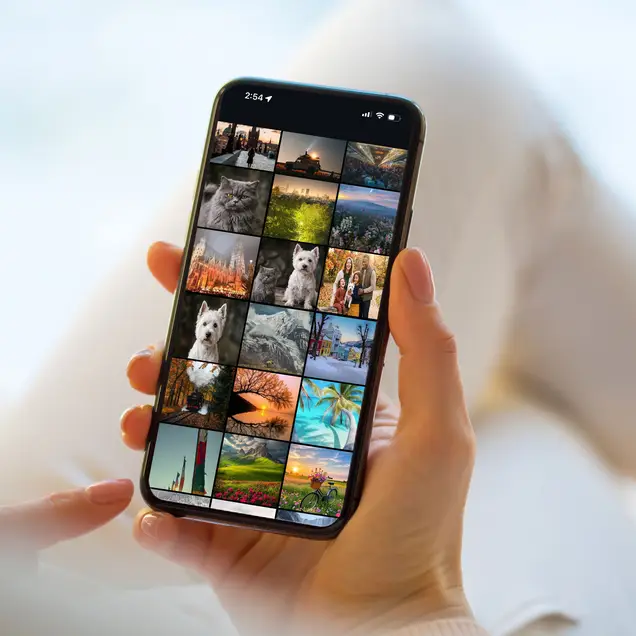
Step 3: Preview Before You Commit
Once you generate your image, you’ll see exactly how it looks inside the painting before you ever get to checkout. If it’s not quite right, you can redo it and try again.
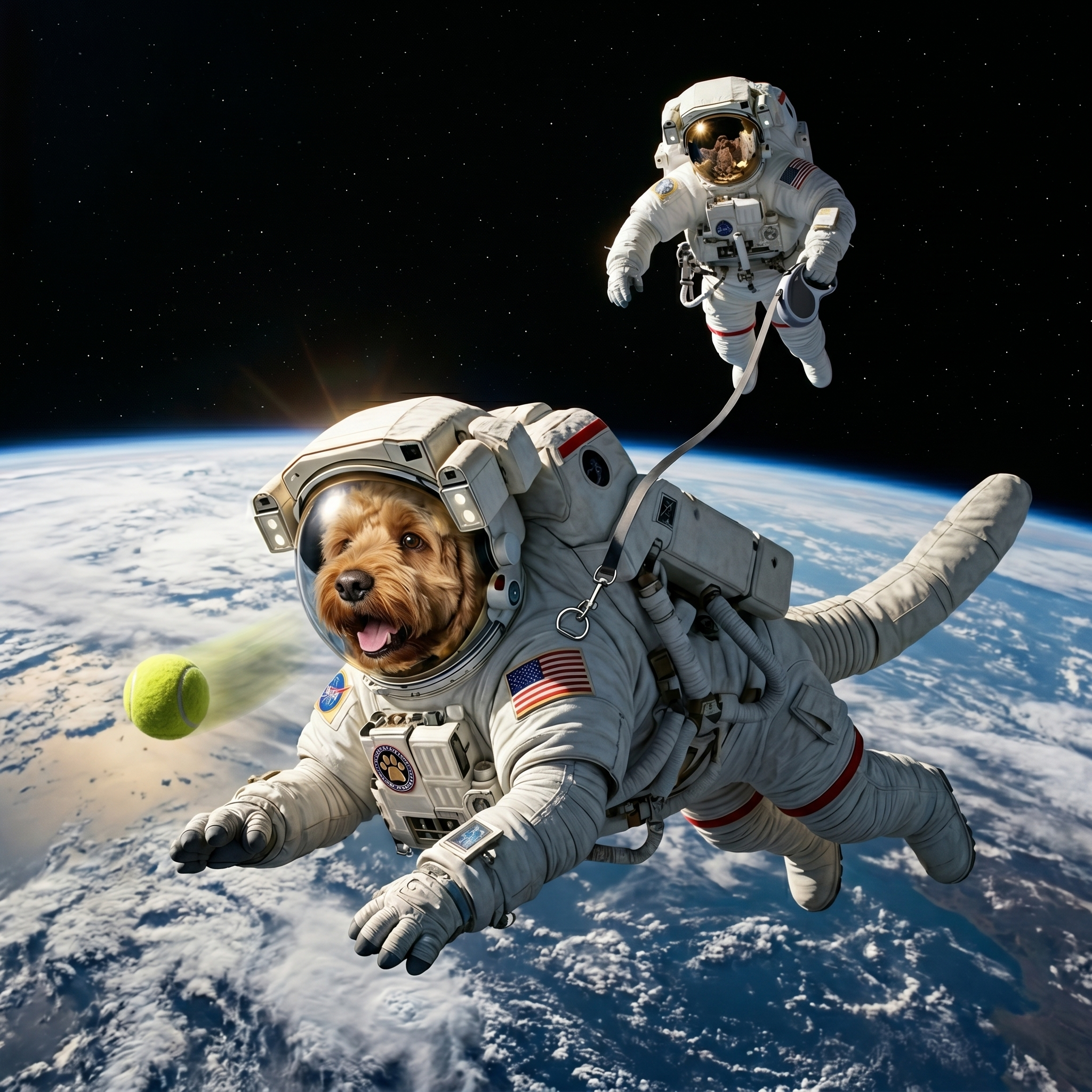
Step 4: Choose Your Format
Once you’re happy with the result, select how you want it printed: a paper art print with a frame, or a framed gallery poster, each available in a range of sizes to fit your space.
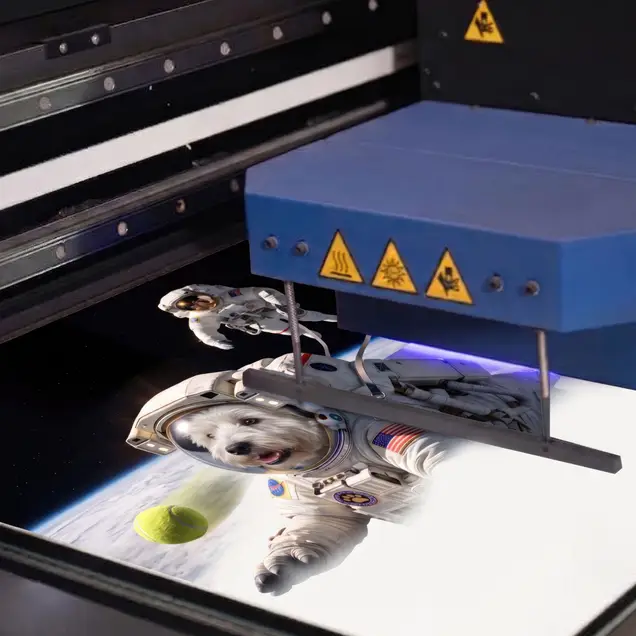
That’s the whole process. You’re not left with a file sitting in your camera roll. You’re left with art.
A Few Tips Before You Turn A Photo into a Painting
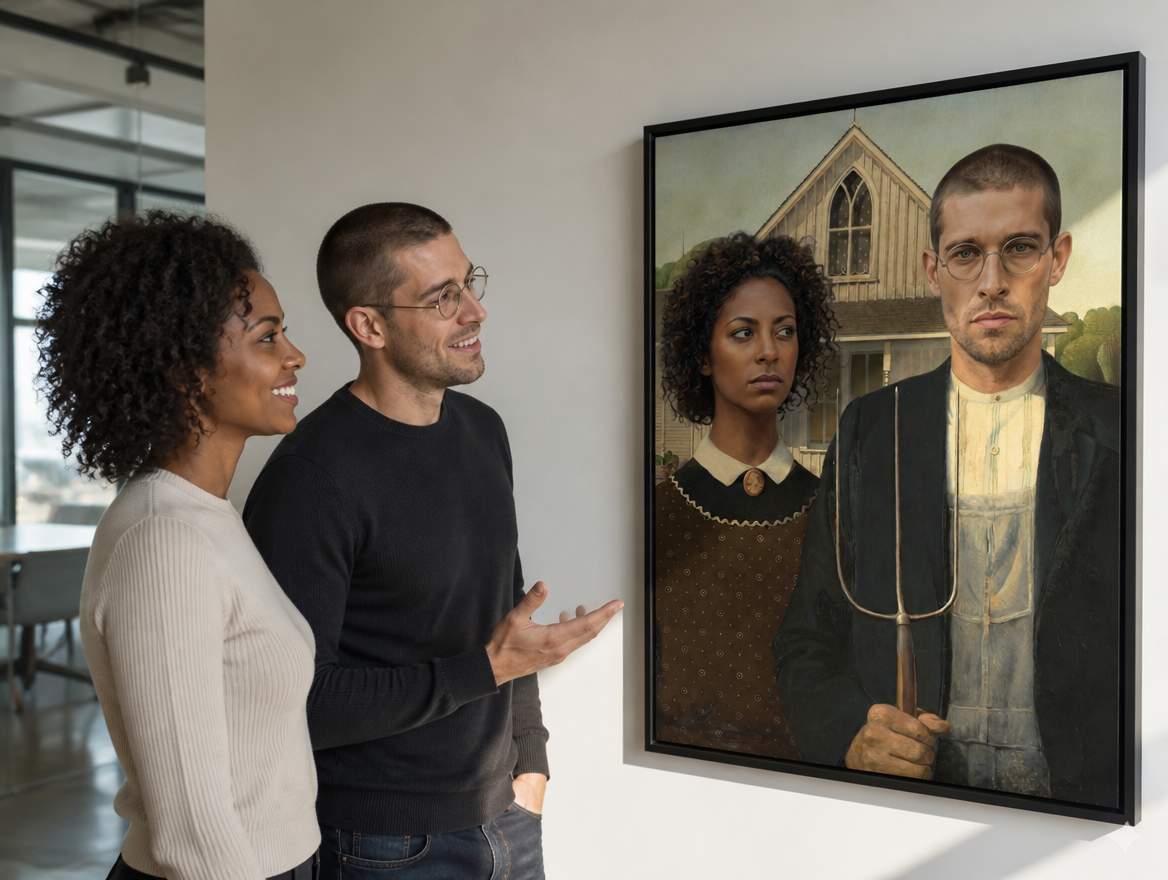
If you want the best possible result, a little bit of prep goes a long way.
Pick a photo where the subject is clearly visible and takes up a good portion of the frame. A wide shot from across a room, or a photo where your subject is one small figure in a big scene, gives the AI less to work with.
If you’re uploading a pet photo, a straight-on or slightly angled shot tends to translate better than one taken from an awkward angle or mid-motion. And if you’re working with a group or family photo, look for a template built around multiple figures rather than a single portrait, so everyone actually fits the scene naturally.
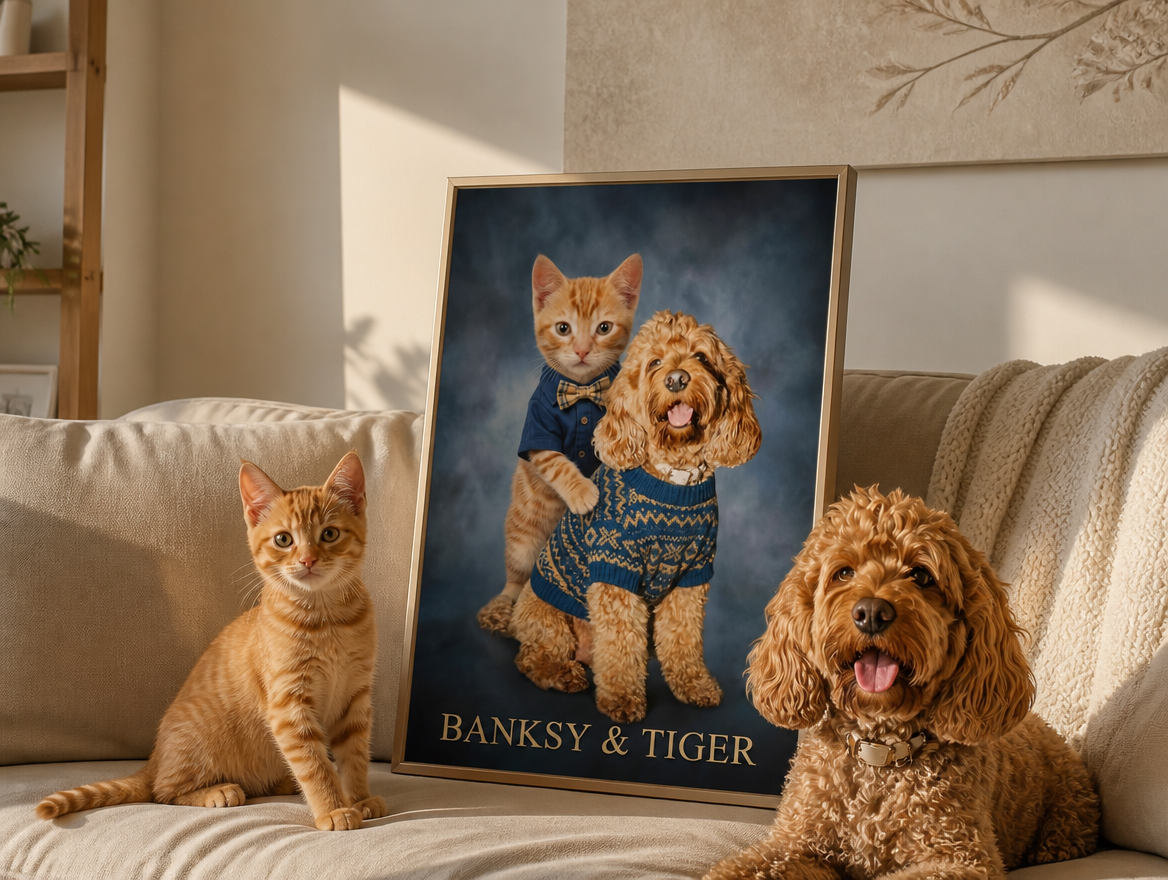
Most importantly, don’t overthink it. You’ll see a preview before you ever have to commit, so there’s very little risk in trying a few different photos or templates to see what you like best.
From Camera Roll to Actual Wall Art
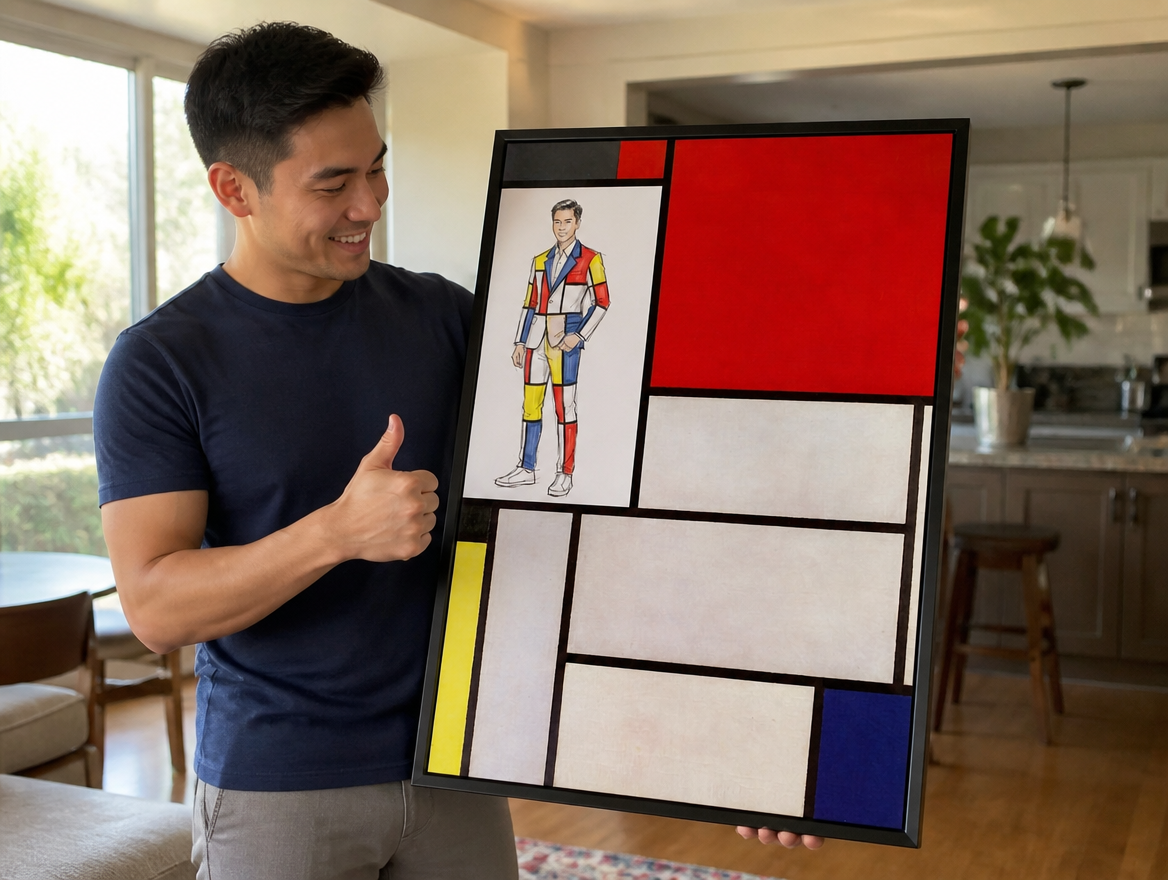
There’s something genuinely delightful about seeing a familiar face inside a painting you recognize, and that feeling doesn’t have to end the moment you close the app. With iCanvas’ custom AI art, it turns into something you can actually put on your wall and look at every day, not just the day you made it.